This guide takes you step-by-step through the process of setting up a new email account in the Outlook Mobile app on iOS or Android.
Replace example.com with your domain name
- Launch the Outlook app
- Select Get Started
- An Add Account screen will appear, enter your email address and select Continue
- Select the ? icon on the top right-hand side of the screen, select Change account provider
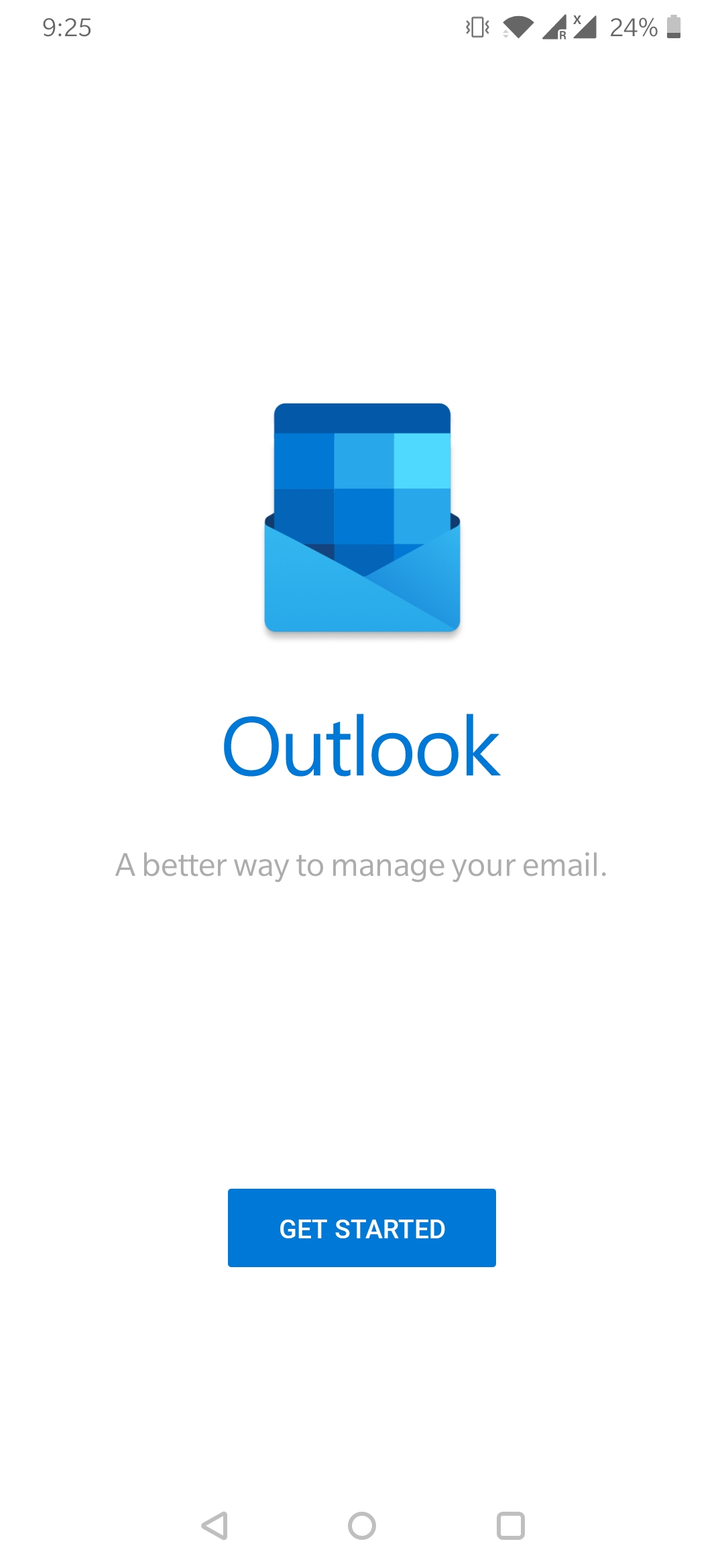
- On the Add Email Account, screen select IMAP
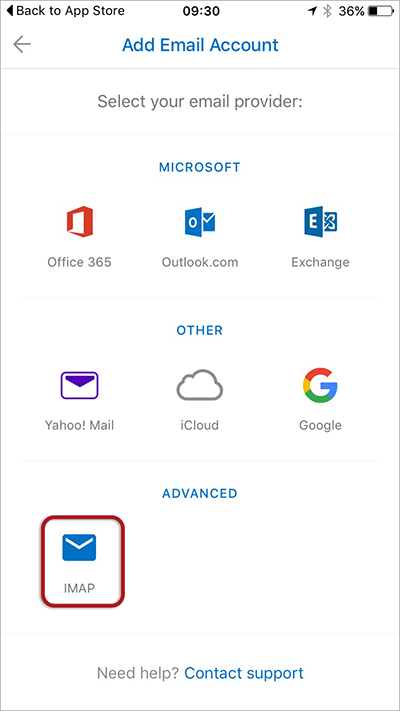
- Complete the following fields:
Email address -- type in your full email address (in lowercase)
Password -- type your email password (forgotten passwords can be reset in the control panel)
Display name -- Your full name (eg John Smith) - Now enable Advanced Settings as shown below
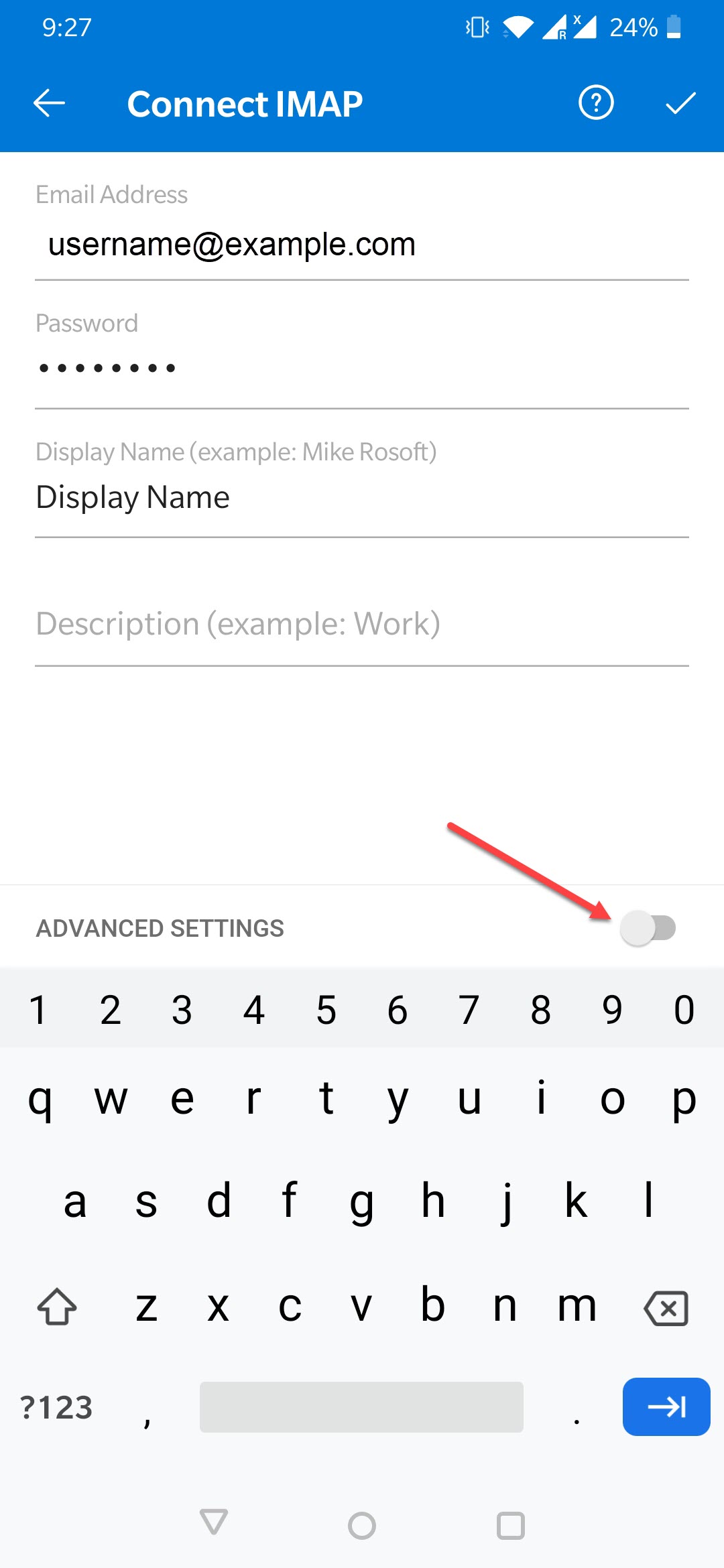
- Complete all Advanced Settings
IMAP Incoming Mail Server – Find your server name from the email that you received when you signed up for the hosting service e.g. mail.example.com
IMAP Username is the full email address
IMAP Password is the mailbox password
SMTP Outgoing Mail Server – Find your server name from the email that you received when you signed up for the hosting service e.g. mail.example.com
SMTP Username is the full email address (same as IMAP)
SMTP Password is the mailbox password (same as IMAP)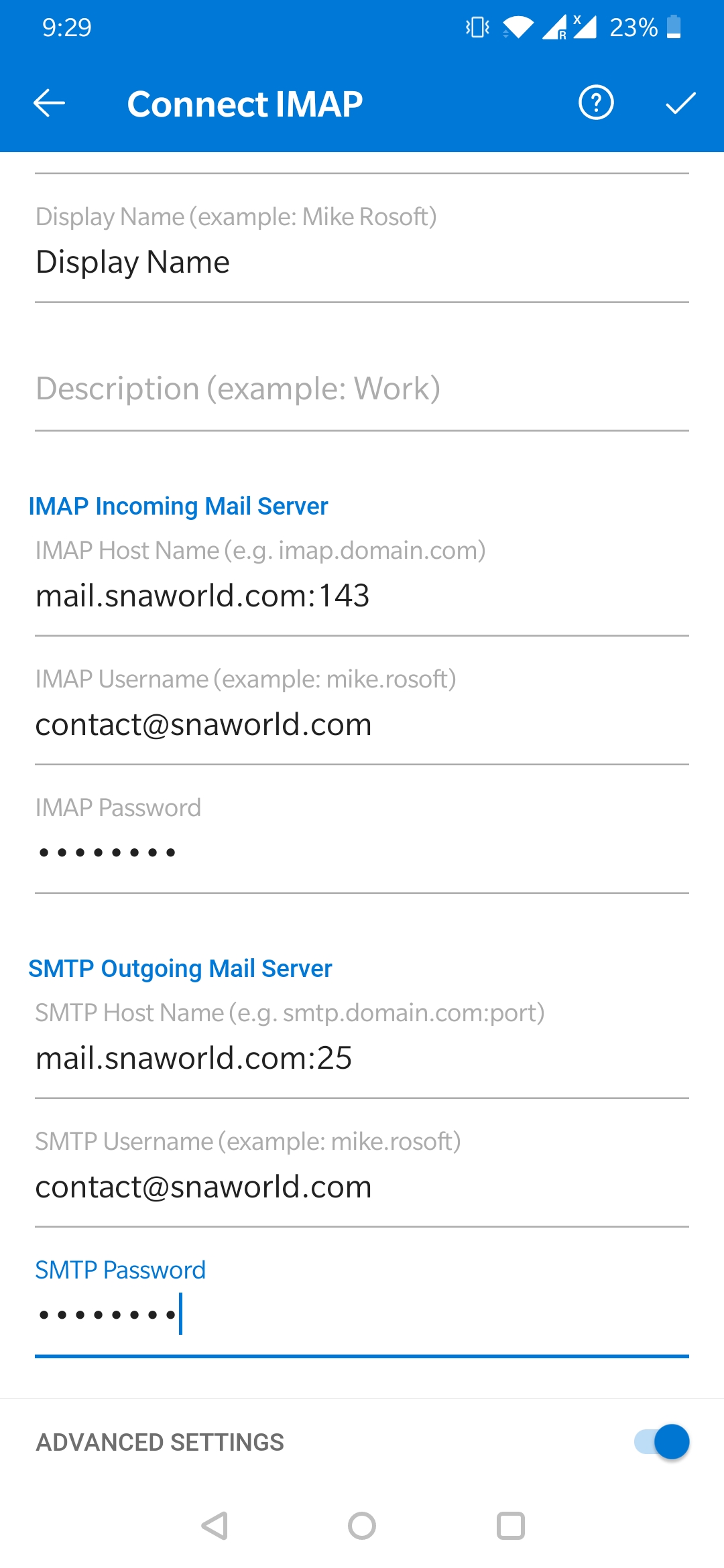
- Select the tick mark icon in the top right-hand corner